
Admin Dashboard Overview
The Admin Dashboard is your central command center for managing the volunteer portal. It provides real-time insights into volunteer activity, shift scheduling, and system performance across all locations.
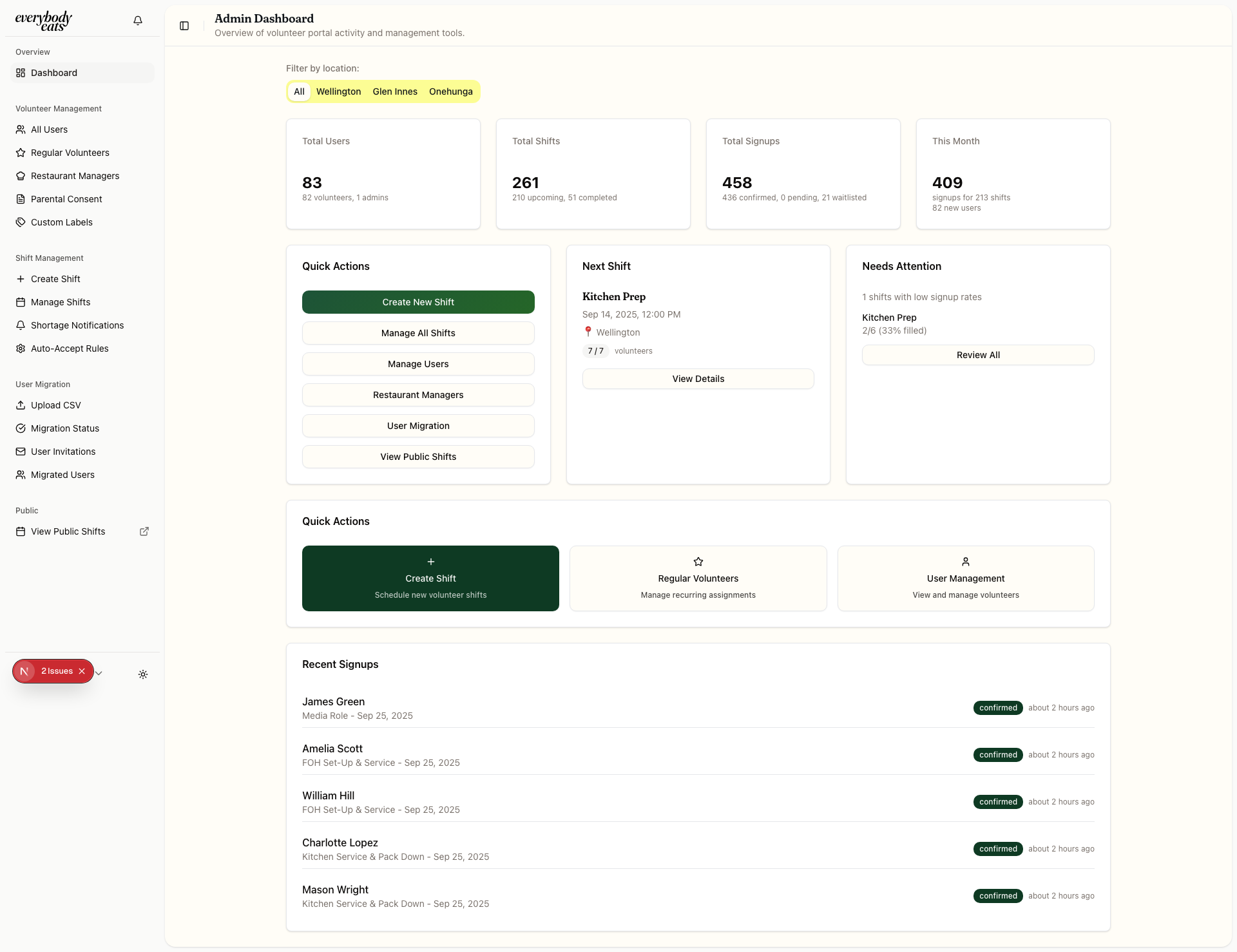
Dashboard Layout
Section titled “Dashboard Layout”Statistics Overview
Section titled “Statistics Overview”The dashboard displays four key metric cards:
- Total Users - Shows volunteer count vs. admin count
- Total Shifts - Displays upcoming vs. completed shifts
- Total Signups - Tracks confirmed, pending, and waitlisted signups
- This Month - Highlights current month activity and new user registrations
Location Filtering
Section titled “Location Filtering”Filter all dashboard data by location using the tabs:
- All - Shows combined data from all locations
- Wellington - Wellington restaurant data only
- Glen Innes - Glen Innes restaurant data only
- Onehunga - Onehunga restaurant data only
The URL updates automatically to preserve your filter selection: /admin?location=Wellington
Key Sections
Section titled “Key Sections”Next Shift Information
Section titled “Next Shift Information”Displays the next upcoming shift with:
- 🔵 Shift date and time
- 🟢 Current volunteer count vs. capacity
- 🔵 Location details
- Quick link to view full shift details
Needs Attention
Section titled “Needs Attention”Highlights shifts requiring immediate attention:
- 🔴 Low signup rates (less than 25% capacity)
- 🟡 Moderate concern (25-50% capacity)
- 🟢 Good signup rates (75%+ capacity)
Recent Signups
Section titled “Recent Signups”Shows the latest volunteer activity with status badges:
- 🟢 Confirmed - Approved signups
- 🟡 Pending - Awaiting admin approval
- 🔵 Waitlisted - On waiting list for full shifts
- 🔴 Canceled - Canceled signups
Quick Actions
Section titled “Quick Actions”Direct links to common administrative tasks:
- Create New Shift - Opens the shift creation form
- Manage All Shifts - Navigate to shift management calendar
- Manage Users - Access user management interface
- View Public Shifts - See the volunteer-facing shifts page
Navigation Tips
Section titled “Navigation Tips”- Use location filtering to focus on specific restaurant data
- Monitor pending signups for shifts requiring approval
- Check “Needs Attention” daily for understaffed shifts
- Quick Actions provide shortcuts to common tasks
Next Steps
Section titled “Next Steps”- Learn about User Roles & Permissions
- Explore Navigation Guide for detailed interface walkthrough
- Start managing volunteers with Viewing Volunteers