
Navigation Guide
This guide will help you navigate the admin interface efficiently and understand how to access all the administrative features.
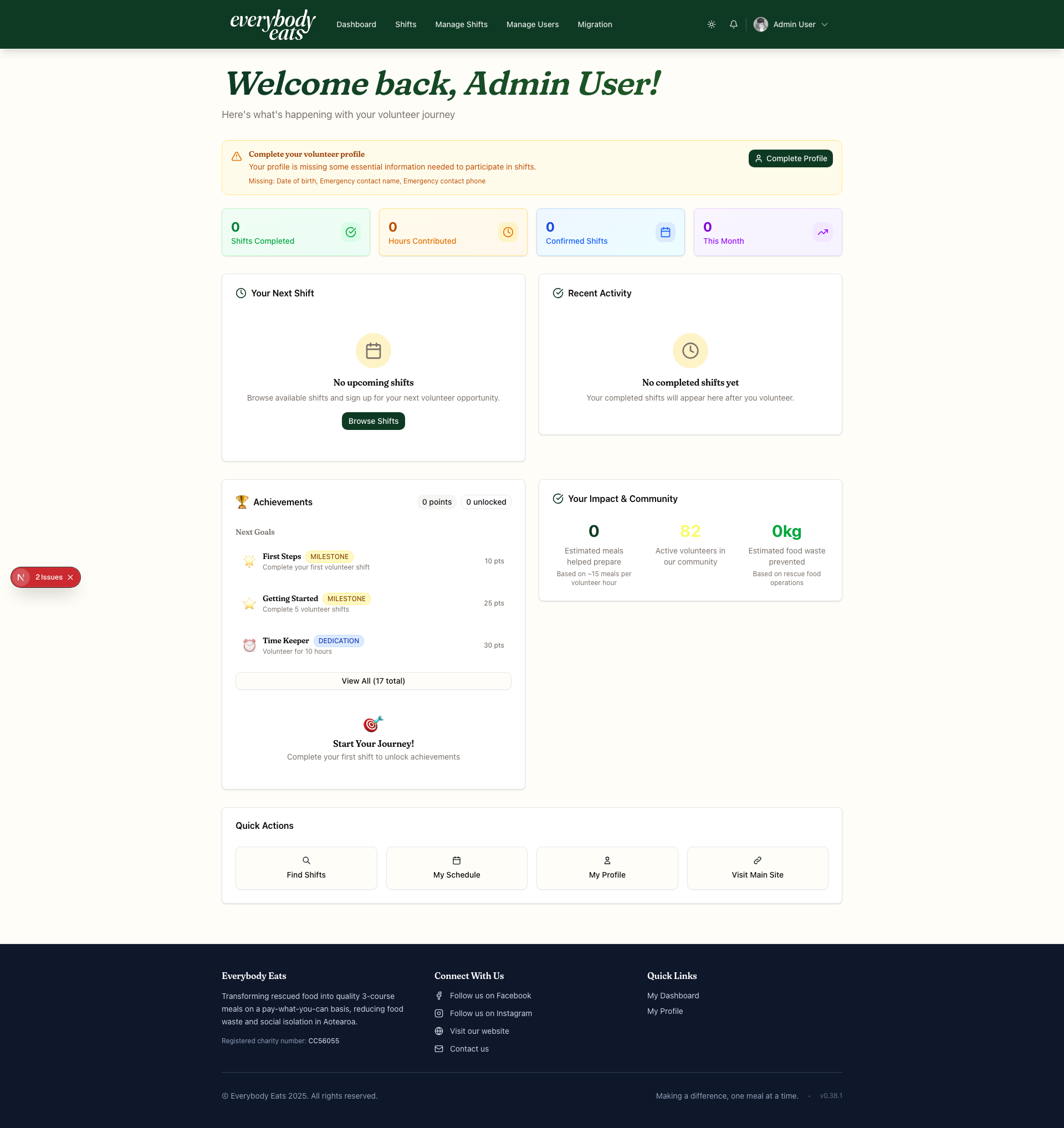
Main Navigation Structure
Section titled “Main Navigation Structure”Header Navigation
Section titled “Header Navigation”The top navigation bar provides access to:
- Dashboard Link - Return to admin dashboard from any page
- Location Selector - Filter data by restaurant location (when applicable)
- User Menu - Account settings and logout option
Sidebar Navigation (Admin Pages)
Section titled “Sidebar Navigation (Admin Pages)”The left sidebar contains organized sections:
📊 Dashboard & Overview
Section titled “📊 Dashboard & Overview”- Admin Dashboard (
/admin) - Main admin interface with metrics - Location filtering - Use tabs to filter by specific restaurant
👥 User Management
Section titled “👥 User Management”- User Management (
/admin/users) - View and manage all volunteers - Volunteer Profiles - Individual volunteer details and notes
- Parental Consent (
/admin/parental-consent) - Manage minor approvals
📅 Shift Management
Section titled “📅 Shift Management”- Manage Shifts (
/admin/shifts) - Calendar view and shift creation - Create New Shift (
/admin/shifts/new) - Shift creation form - Attendance Tracking - Monitor volunteer attendance
📈 Reports & Analytics
Section titled “📈 Reports & Analytics”- Dashboard metrics provide real-time insights
- Location-based filtering for targeted analysis
- Export functionality (where available)
Page Layouts and Components
Section titled “Page Layouts and Components”Dashboard Layout
Section titled “Dashboard Layout”- Statistics Cards - Key metrics at the top
- Location Filter Tabs - Switch between restaurant locations
- Quick Actions - Common tasks and shortcuts
- Recent Activity - Latest signups and changes
Calendar Interface (Shifts)
Section titled “Calendar Interface (Shifts)”- Date Navigation - Calendar picker for date selection
- Location Selector - Filter shifts by restaurant
- Color Coding - Visual staffing level indicators:
- Green - Fully staffed
- Yellow - Moderate staffing
- Red - Critical staffing needs
User Management Interface
Section titled “User Management Interface”- Search and Filter - Find specific volunteers
- Profile Links - Quick access to detailed volunteer information
- Action Buttons - Common user management tasks
- Status Indicators - User account and approval status
Navigation Patterns
Section titled “Navigation Patterns”Breadcrumb Navigation
Section titled “Breadcrumb Navigation”Pages show hierarchical navigation:
Admin Dashboard > User Management > Volunteer ProfileQuick Return Links
Section titled “Quick Return Links”- Dashboard button always visible in header
- Back to [Previous Page] links where appropriate
- Cancel buttons return to previous context
Deep Linking
Section titled “Deep Linking”All admin pages support direct URL access:
/admin- Main dashboard/admin/users- User management/admin/shifts- Shift calendar/admin/shifts/new- Create shift form
Mobile Navigation
Section titled “Mobile Navigation”Responsive Design
Section titled “Responsive Design”The admin interface adapts to smaller screens:
- Collapsible sidebar on mobile devices
- Touch-friendly buttons and controls
- Swipe navigation where applicable
- Mobile-optimized forms for data entry
Mobile-Specific Features
Section titled “Mobile-Specific Features”- Calendar view switches to list format on small screens
- Statistics cards stack vertically
- Action buttons remain accessible via scrolling
Keyboard Navigation
Section titled “Keyboard Navigation”Accessibility Support
Section titled “Accessibility Support”- Tab navigation through all interactive elements
- Enter/Space to activate buttons and links
- Escape to close dialogs and modals
- Arrow keys for calendar navigation (where applicable)
Keyboard Shortcuts
Section titled “Keyboard Shortcuts”Common shortcuts available:
- Ctrl/Cmd + Home - Return to dashboard (where supported)
- Tab - Move between form fields
- Enter - Submit forms and confirm actions
Search and Filtering
Section titled “Search and Filtering”Global Search
Section titled “Global Search”- User search - Find volunteers by name or email
- Shift search - Locate specific shifts by date or type
- Quick filters - Common search patterns available
Advanced Filtering
Section titled “Advanced Filtering”- Date ranges for historical data
- Location filtering across all admin features
- Status filtering (active, pending, completed)
- Custom filters for specific data views
Common Navigation Tasks
Section titled “Common Navigation Tasks”Daily Admin Workflow
Section titled “Daily Admin Workflow”- Check Dashboard - Review daily metrics and alerts
- Review Pending Approvals - Handle volunteer signups
- Monitor Shift Capacity - Address understaffed shifts
- Update User Records - Add notes and manage profiles
Weekly Admin Tasks
Section titled “Weekly Admin Tasks”- Create New Shifts - Plan upcoming volunteer opportunities
- Review Analytics - Assess volunteer engagement trends
- Manage Group Bookings - Process group volunteer requests
- System Maintenance - Handle user account issues
Navigation Tips
Section titled “Navigation Tips”Efficiency Tips
Section titled “Efficiency Tips”- Use location filtering to focus on specific restaurant needs
- Bookmark frequently used pages for quick access
- Keep multiple tabs open for complex tasks
- Use browser back/forward buttons for quick navigation
Best Practices
Section titled “Best Practices”- Always save changes before navigating away from forms
- Check for pending actions indicated by badges or alerts
- Use confirmation dialogs for destructive actions
- Keep session active by periodically interacting with the interface
Getting Help
Section titled “Getting Help”Context-Sensitive Help
Section titled “Context-Sensitive Help”- Hover tooltips on complex interface elements
- Help links in forms and configuration areas
- Status indicators show current system state
Support Resources
Section titled “Support Resources”- Error messages provide specific guidance
- Validation feedback helps with form completion
- Success confirmations verify completed actions
Next Steps
Section titled “Next Steps”- Explore User Management for volunteer administration
- Learn Shift Management for scheduling
- Review Dashboard Metrics for performance insights