
Calendar Overview
The shift management calendar is your primary tool for scheduling volunteers and monitoring shift capacity across all restaurant locations.
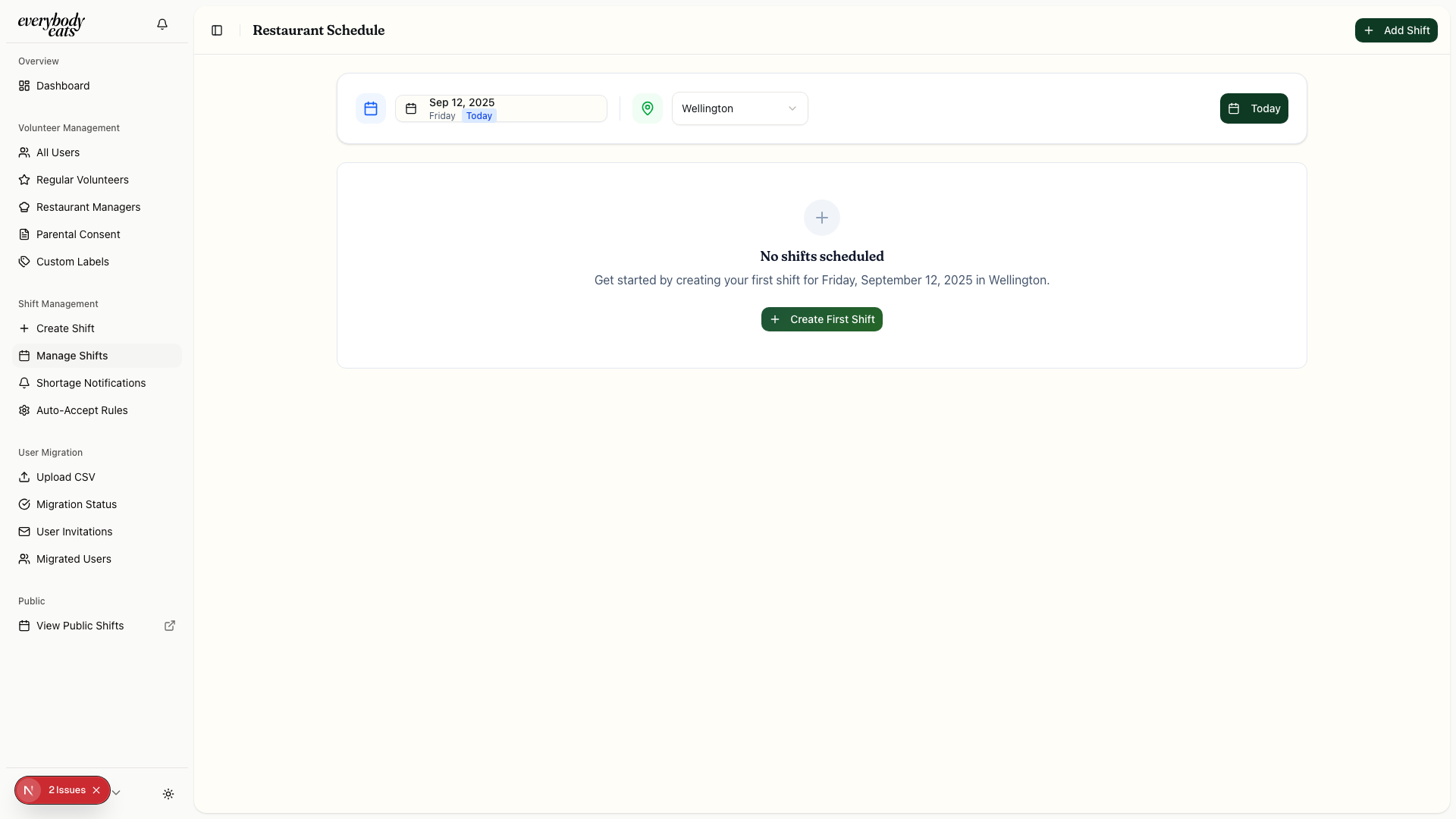
Calendar Interface
Section titled “Calendar Interface”Date Navigation
Section titled “Date Navigation”- Calendar Picker: Click the date button (showing current month/year) to open calendar popup
- Location Selector: Filter shifts by specific restaurant location
- Today Button: Quick return to current date
- Legend: Color-coded staffing levels visible in calendar popup
Staffing Level Indicators
Section titled “Staffing Level Indicators”The calendar uses color coding to show shift capacity:
- Fully Staffed (100%+) - Green background
- Moderate Staffing (25-75%) - Yellow background
- Critical Staffing (<25%) - Red background
- No color - No shifts scheduled for that date
Calendar Features
Section titled “Calendar Features”Location-Based Filtering
Section titled “Location-Based Filtering”Use the location selector to focus on specific restaurants:
- All Locations - Combined view of all restaurant shifts
- Wellington - Wellington location shifts only
- Glen Innes - Glen Innes location shifts only
- Onehunga - Onehunga location shifts only
URL automatically updates: /admin/shifts?location=Wellington
Shift Information Display
Section titled “Shift Information Display”Each calendar date shows:
- Shift count for that date
- Staffing percentage via color coding
- Critical alerts for understaffed shifts
Quick Actions
Section titled “Quick Actions”- Create Shift Button - Opens shift creation form
- Calendar Legend - Shows staffing level meanings
- Date Selection - Click any date to view detailed shift information
Working with Shifts
Section titled “Working with Shifts”Creating Shifts
Section titled “Creating Shifts”- Click “Create Shift” button in top navigation
- Select date, time, location, and capacity
- Set shift type (Kitchen, Service, Cleaning, etc.)
- Define any special requirements or notes
- Save to make available for volunteer signups
Managing Existing Shifts
Section titled “Managing Existing Shifts”- Click on any date in the calendar
- View list of shifts for that date
- Click individual shifts to:
- Edit shift details
- Manage volunteer signups
- View capacity and waitlists
- Track attendance
Monitoring Capacity
Section titled “Monitoring Capacity”Daily Overview:
- Red dates indicate shifts needing immediate attention
- Yellow dates show moderate staffing concerns
- Green dates are fully staffed or overstaffed
Detailed View:
- Click dates to see specific volunteer assignments
- Review pending signup approvals
- Manage waitlisted volunteers
Shift Status Management
Section titled “Shift Status Management”Approval Workflow
Section titled “Approval Workflow”- Pending Signups - Volunteers request shift assignments
- Admin Review - Admins approve or deny requests
- Confirmed Signups - Approved volunteers receive confirmation
- Waitlist Management - Handle excess signups for popular shifts
Group Bookings
Section titled “Group Bookings”- Group Requests - Multiple volunteers booking together
- Invitation Status - Track group member responses
- Approval Requirements - All group members must complete profiles
- Capacity Management - Ensure group size fits shift capacity
Best Practices
Section titled “Best Practices”Daily Monitoring
Section titled “Daily Monitoring”- Check red/critical dates first each day
- Review pending approvals regularly
- Monitor upcoming shifts (next 7 days) for capacity issues
Shift Planning
Section titled “Shift Planning”- Create shifts 2-4 weeks in advance for better volunteer planning
- Consider recurring shifts for regular restaurant operations
- Account for holiday schedules and special events
Volunteer Communication
Section titled “Volunteer Communication”- Early approval of signups helps volunteers plan
- Waitlist communication keeps volunteers engaged
- Capacity updates help volunteers understand availability
Common Scenarios
Section titled “Common Scenarios”Understaffed Shifts
Section titled “Understaffed Shifts”- Calendar shows red background for critical dates
- Dashboard “Needs Attention” highlights the issue
- Consider:
- Sending targeted emails to eligible volunteers
- Adjusting shift requirements or capacity
- Creating incentives for hard-to-fill shifts
Overstaffed Shifts
Section titled “Overstaffed Shifts”- Green background indicates full capacity
- Waitlist management for excess volunteers
- Options:
- Create additional shifts if demand supports it
- Maintain waitlist for last-minute cancellations
- Thank volunteers and suggest alternative dates
Group Booking Requests
Section titled “Group Booking Requests”- Review group composition and leader credentials
- Check all member profiles for completion
- Verify capacity fits group size
- Approve or request modifications as needed
Next Steps
Section titled “Next Steps”- Learn Creating Shifts for detailed shift setup
- Explore Managing Signups for approval workflows
- Review Group Bookings for group management