
Viewing Volunteers
Learn how to access, review, and manage volunteer information through the user management interface.
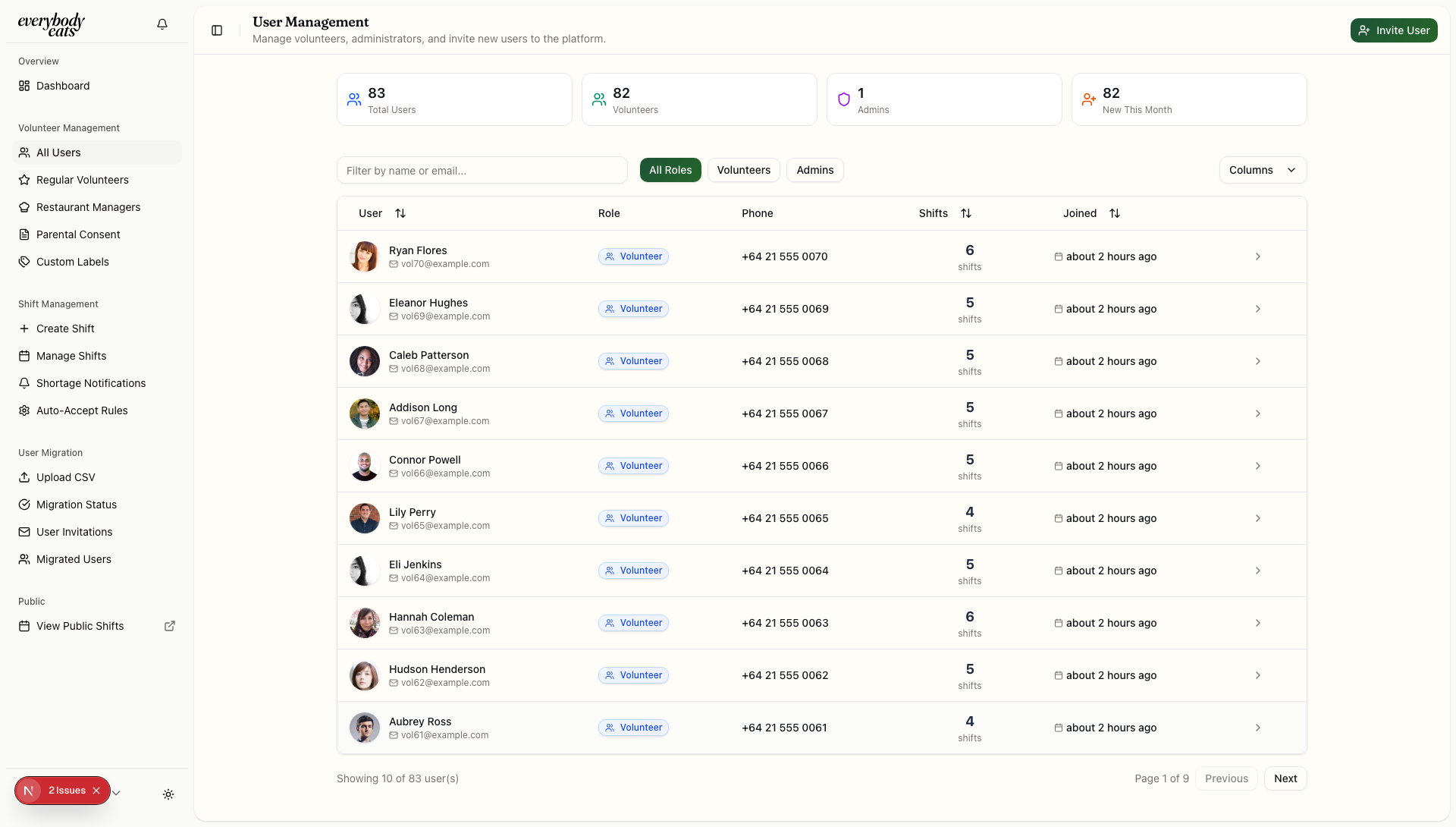
Accessing the User Management Page
Section titled “Accessing the User Management Page”Navigate to the user management interface:
- From the admin dashboard, click “Manage Users” in Quick Actions
- Or navigate directly to
/admin/users - Ensure you have admin privileges to access this page
User List Overview
Section titled “User List Overview”The user management page displays all registered volunteers with key information:
Displayed Information
Section titled “Displayed Information”- Profile photo or avatar with initials
- Full name and contact email
- User role (Volunteer or Admin)
- Account status and completion level
- Registration date and last activity
Filtering Options
Section titled “Filtering Options”- Search by name or email
- Filter by role (All, Volunteers, Admins)
- Filter by status (Active, Pending, Incomplete profiles)
- Sort by registration date, last activity, or name
Volunteer Profile Details
Section titled “Volunteer Profile Details”Click on any volunteer to view their complete profile:
Personal Information
Section titled “Personal Information”- Full name and contact details
- Mobile phone number
- Birth date and age
- Profile completion status
Emergency Contact
Section titled “Emergency Contact”- Emergency contact name and relationship
- Emergency contact phone number
- Alternative contact information (if provided)
Volunteer Activity
Section titled “Volunteer Activity”- Total shifts completed
- Current month activity
- Achievement progress
- Recent shift history
Account Information
Section titled “Account Information”- Registration date and method (email/OAuth)
- Last login and activity timestamp
- Profile completion percentage
- Account verification status
Profile Status Indicators
Section titled “Profile Status Indicators”Understanding volunteer account status:
Complete Profile: All required information provided
Incomplete Profile: Missing required information
New User: Recently registered, needs verification
Needs Attention: Account issues requiring admin action
Managing Volunteer Information
Section titled “Managing Volunteer Information”Available Actions
Section titled “Available Actions”From the volunteer profile view:
- Add Admin Notes - Record interactions and important information
- View Shift History - See complete volunteer activity
- Update Contact Info - Assist with profile maintenance
- Manage Permissions - Handle special access needs
Bulk Operations
Section titled “Bulk Operations”Select multiple volunteers to:
- Export volunteer information
- Send group communications
- Apply bulk status changes
- Generate activity reports
Special Cases
Section titled “Special Cases”Parental Consent Required
Section titled “Parental Consent Required”For volunteers under 18:
- Consent Pending - Awaiting parental approval
- Consent Approved - Can participate in shifts
- Download consent forms for processing
Group Booking Leaders
Section titled “Group Booking Leaders”Volunteers who create group bookings:
- View group booking history
- See group member management
- Track invitation responses
Achievement Tracking
Section titled “Achievement Tracking”Monitor volunteer progress:
- Milestone achievements (shift counts)
- Dedication achievements (consecutive months)
- Impact achievements (hours contributed)
- Specialization achievements (specific shift types)
Search and Navigation Tips
Section titled “Search and Navigation Tips”Efficient Searching
Section titled “Efficient Searching”- Use partial names for quick lookup
- Email search for exact matches
- Recent activity filter for active volunteers
- Incomplete profiles filter for follow-up needs
Quick Actions
Section titled “Quick Actions”- Recently registered volunteers may need profile assistance
- High activity volunteers might be candidates for recognition
- Inactive volunteers could benefit from re-engagement
Common Administrative Tasks
Section titled “Common Administrative Tasks”Daily Volunteer Review
Section titled “Daily Volunteer Review”- Check new registrations for profile completion
- Review pending consent for underage volunteers
- Follow up on incomplete profiles
- Monitor volunteer engagement levels
Weekly Volunteer Management
Section titled “Weekly Volunteer Management”- Generate activity reports
- Update volunteer notes and records
- Process parental consent approvals
- Recognize high-achieving volunteers
Data Privacy and Security
Section titled “Data Privacy and Security”Information Handling
Section titled “Information Handling”- Protect personal information according to privacy policies
- Limit access to volunteer data to authorized admins only
- Secure notes and records with appropriate confidentiality
- Regular data review to ensure accuracy and relevance
Communication Guidelines
Section titled “Communication Guidelines”- Use volunteer information only for organizational purposes
- Respect privacy preferences for communications
- Maintain professional boundaries in all interactions
Next Steps
Section titled “Next Steps”- Learn about Volunteer Profiles for detailed management
- Explore Admin Notes for record-keeping
- Review Parental Consent for minor management